<?xml version="1.0" encoding="utf-8"?>
    <feed xmlns="http://www.w3.org/2005/Atom">
        
            <title type="text">咸鱼5号</title>


                <subtitle type="text">一个诞生于上个世纪的大龄码农</subtitle>
            
        
        <updated>2023-06-18T17:38:31+08:00</updated>

        
            <id>https://www.zacyuan.cn</id>
        
        
            <link rel="alternate" type="text/html" href="https://www.zacyuan.cn"/>
            <link rel="self" type="application/atom+xml" href="https://www.zacyuan.cn/atom.xml"/>
        
        <rights>Copyright © 2026, 咸鱼5号</rights>
        <generator uri="https://go-sonic.org/" version="1.0.0">Sonic</generator>
        
            
                <entry>
                    <title><![CDATA[Linux shell 美化]]></title>
                    <link rel="alternate" type="text/html"
                          href="/archives/linuxshell-mei-hua"/>
                    <id>tag:https://www.zacyuan.cn,2023-06-18:linuxshell-mei-hua</id>
                    <published>2023-06-18T17:38:31+08:00</published>
                    <updated>2023-06-18T17:38:31+08:00</updated>
                    <author>
                        <name>扎克</name>
                        <uri>https://www.zacyuan.cn</uri>
                    </author>
                    <content type="html">
                        
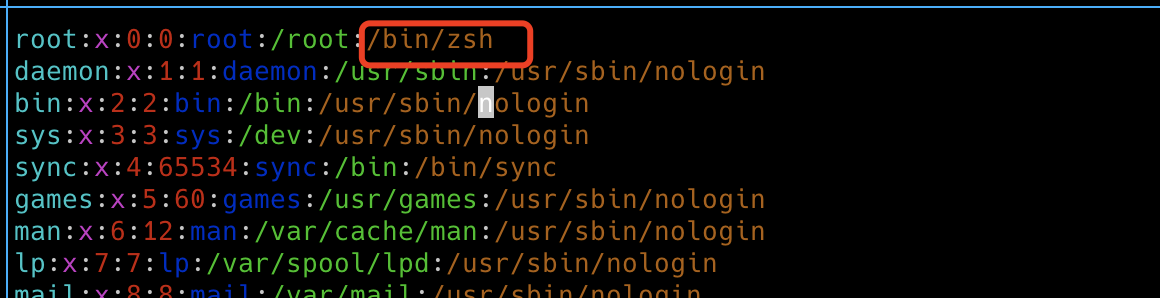
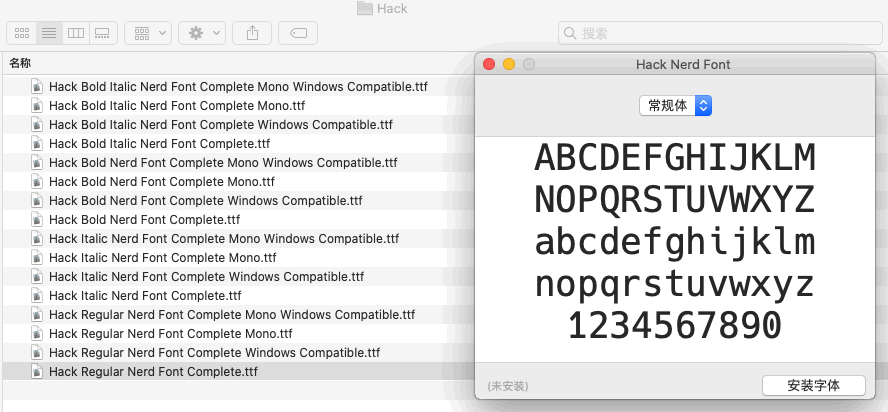
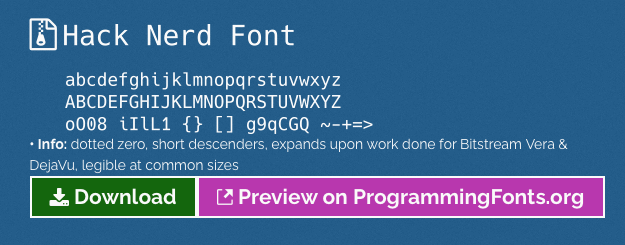
                            <![CDATA[<p>1、安装zsh<br />先查看是否已经安装了zsh：</p><pre><code class="language-">cat /etc/shells</code></pre><p>安装zsh:</p><pre><code class="language-">apt install zshyay -S zsh</code></pre><p>改变当前用户默认shell（修改/etc/passwd文件）：</p><pre><code class="language-">sudo vim /etc/passwd</code></pre><p>将自己对应的用户名后面改成“/bin/zsh”。<br /><img src="/upload/2023/06/WX20230618-170800@2x.png" alt="WX20230618-170800@2x" /></p><br>2、安装oh-my-zsh<pre><code class="language-">sh -c &quot;$(curl -fsSL https://raw.github.com/robbyrussell/oh-my-zsh/master/tools/install.sh)&quot;</code></pre><p>由于墙的原因，基本安装不了。所以，可以换成下面的：</p><pre><code class="language-">sh -c &quot;$(curl -fsSL https://gitee.com/shmhlsy/oh-my-zsh-install.sh/raw/master/install.sh)&quot;</code></pre><p><br>3、添加oh-my-zsh的自动命令提示功能，被墙掉的话，也可以到gitee上去找</p><pre><code class="language-">git clone https://gitee.com/wangl-cc/zsh-autosuggestions.git $ZSH_CUSTOM/plugins/zsh-autosuggestions# 修改字体可以调亮cd ~/.oh-my-zsh/custom/plugins/zsh-autosuggestionsvim zsh-autosuggestions.zsh</code></pre><p>修改 ZSH_AUTOSUGGEST_HIGHLIGHT_STYLE=‘fg=10’ （也可以把10改成自己需要的值）</p><p>用 vim 打开 .zshrc 文件，找到插件设置命令，默认是 plugins=(git) ，我们把它修改为</p><pre><code class="language-">plugins=(zsh-autosuggestions git)</code></pre><p>4、添加语法高亮</p><pre><code class="language-">brew install zsh-syntax-highlighting# macosapt install zsh-syntax-highlighting# ubuntuyum install zsh-syntax-highlighting # centosyay -S zsh-syntax-highlighting# manjaro</code></pre><p>修改.zshrc文件，在文件默尾加上：</p><pre><code class="language-">source /usr/local/share/zsh-syntax-highlighting/zsh-syntax-highlighting.zsh# macossource /usr//share/zsh-syntax-highlighting/zsh-syntax-highlighting.zsh# linux</code></pre><p>重新加载配置文件：</p><pre><code class="language-">source ~/.zshrc</code></pre><p>5、安装p10k：</p><pre><code class="language-">cd ./.oh-my-zsh/themesgit clone  https://gitee.com/romkatv/powerlevel10k.git</code></pre><p>vi ~/.zshrc 设置如下内容 使用p10k主题 ZSH_THEME=“powerlevel10k/powerlevel10k”<br />根据向导模式进行p10k的主题定制</p><pre><code class="language-">p10k configure</code></pre><p>iterm2 中使用Nerd Fonts字体</p><pre><code class="language-">https://www.nerdfonts.com/font-downloads</code></pre><p><img src="/upload/2023/10/zmz2ivsxqn.png" alt="zmz2ivsxqn" /></p><p>安装字体<br /><img src="/upload/2023/10/t61mxhhoo8.png" alt="t61mxhhoo8" /></p><p>6、安装tmux：</p><pre><code class="language-">brew install tmux# macosapt install tmux # ubuntuyum install tmux # centosyay -S tmux # manjaro</code></pre><p>7、美化tmux：</p><pre><code class="language-">cdgit clone https://github.com/gpakosz/.tmux.gitln -s -f .tmux/.tmux.confcp .tmux/.tmux.conf.local .</code></pre><p>启用鼠标：<br />修改.tmux.conf.local，找到 “# set -g mouse on”，将“#”去掉即或</p><p>在~/.zshrc文件添加：</p><pre><code class="language-">tmux_init(){    if [[ $1 == &quot;&quot; ]]; then        echo &quot;Need tmux name.&quot;    else        count=&#96;tmux ls | grep -w &quot;$1&quot; | wc -l&#96;        if [[ $count -gt 0 ]] ; then            tmux a -t $1        else            tmux new-session -s &quot;$1&quot; -d            tmux split-window -h            tmux split-window -v            #tmux select-pane -t 0            #tmux split-window -v            #tmux select-pane -t 0            tmux -2 attach-session -d        fi    fi}</code></pre><p>之后就可以使用如下命令，快速进么tmux：</p><pre><code class="language-">tmux_init zacyuan</code></pre>]]>
                        
                    </content>
                </entry>
            
                <entry>
                    <title><![CDATA[MySQL8.0特点]]></title>
                    <link rel="alternate" type="text/html"
                          href="/archives/MySQL80"/>
                    <id>tag:https://www.zacyuan.cn,2023-06-09:MySQL80</id>
                    <published>2023-06-09T14:31:05+08:00</published>
                    <updated>2023-06-09T14:31:05+08:00</updated>
                    <author>
                        <name>扎克</name>
                        <uri>https://www.zacyuan.cn</uri>
                    </author>
                    <content type="html">
                        
                            <![CDATA[<ol><li><p>JSON数据类型支持：</p><ul><li>MySQL 8.0引入了对JSON数据类型的原生支持，可以直接在表中存储JSON格式的数据，并使用相关的JSON函数进行查询和操作。这简化了处理和查询JSON数据的过程，并提供了更高效的存储和检索机制。</li></ul></li><li><p>InnoDB全文搜索：</p><ul><li>MySQL 8.0引入了InnoDB全文搜索功能，通过引入全文索引和相关的查询语法，使得全文搜索更加强大和高效。使用全文索引，可以执行复杂的全文搜索操作，例如全文匹配、布尔搜索和排序等。</li></ul></li><li><p>空间数据类型和GIS支持：</p><ul><li>MySQL 8.0增加了对地理空间数据的支持，包括存储和查询与地理位置相关的数据。它引入了几何数据类型（Geometry Data Types）和地理信息系统函数，使得处理地理位置数据更加方便和直观。</li></ul></li><li><p>权限管理的改进：</p><ul><li>MySQL 8.0对权限管理进行了改进，提供了更细粒度的权限控制。引入了更多的权限选项，例如表级别的权限、列级别的权限以及存储过程和函数的权限等。这使得管理员可以更精确地控制用户对数据库和表的访问权限。</li></ul></li><li><p>加密和安全性功能的增强：</p><ul><li>MySQL 8.0引入了更多的加密功能，包括支持更多的加密算法和TLS协议版本。它提供了更强大的数据加密和安全性选项，帮助保护敏感数据。此外，MySQL 8.0还提供了密码过期和密码策略的功能，增强了数据库的安全性。</li></ul></li><li><p>性能优化：</p><ul><li>MySQL 8.0对查询优化器进行了改进，提供了更好的查询性能和执行计划。引入了Cost Model来优化查询执行计划，改进了连接算法和索引选择器，以提高查询性能和效率。此外，MySQL 8.0还引入了更高效的多线程处理和并发控制机制，以支持更高的并发性能。</li></ul></li><li><p>其他更改和改进：</p><ul><li>MySQL 8.0还包括许多其他改进和功能，如更好的自管理性、在线DDL（数据定义语言）操作、更强大的查询语法支持（如窗口函数和CTE）、更好的复制和高可用性选项等。这些改进和功能提供了更全面和强大的数据库管理和开发功能。</li></ul></li></ol><p>需要注意的是，升级到MySQL 8.0可能需要考虑与MySQL 5.7不兼容的更改和配置调整。在进行升级之前，请务必阅读MySQL官方文档中关于从MySQL 5.7升级到MySQL 8.0的指南，以确保顺利进行升级并解决潜在的兼容性问题。</p><p>一些与向后不兼容的更改可能包括：</p><ol><li><p>SQL语法的变化：</p><ul><li>MySQL 8.0引入了一些新的SQL语法和关键字，并更改了一些现有语法的行为。在升级之前，需要检查和修改可能受到影响的应用程序代码和查询语句。</li></ul></li><li><p>索引长度限制：</p><ul><li>MySQL 8.0对索引长度的限制进行了修改，从之前的3072字节增加到了3072字节的前缀索引和767字节的普通索引。如果您的表中使用了较长的索引，请确保在升级之前对其进行适当调整。</li></ul></li><li><p>密码认证插件：</p><ul><li>MySQL 8.0引入了新的密码认证插件（caching_sha2_password），默认情况下使用这种更安全的插件进行用户认证。如果您在升级后遇到无法连接数据库的问题，请确保客户端支持新的密码认证插件，或者将默认的密码认证插件更改回旧的方式（如mysql_native_password）。</li></ul></li><li><p>系统变量和默认设置：</p><ul><li>MySQL 8.0对一些系统变量和默认设置进行了更改。例如，innodb_file_per_table默认值从5.7的OFF变为8.0的ON。在升级之后，您可能需要检查和调整相关的系统变量和配置文件以适应新的默认设置。</li></ul></li><li><p>存储引擎的默认值：</p><ul><li>MySQL 8.0将默认的存储引擎从5.7的InnoDB更改为8.0的InnoDB。如果您在5.7中使用了不同的默认存储引擎，请在升级后确认和修改相关的表和数据库的存储引擎。</li></ul></li></ol>]]>
                        
                    </content>
                </entry>
            
                <entry>
                    <title><![CDATA[Linux配置swap分区]]></title>
                    <link rel="alternate" type="text/html"
                          href="/archives/Linuxswap"/>
                    <id>tag:https://www.zacyuan.cn,2023-04-08:Linuxswap</id>
                    <published>2023-04-08T20:12:32+08:00</published>
                    <updated>2023-04-08T20:12:32+08:00</updated>
                    <author>
                        <name>扎克</name>
                        <uri>https://www.zacyuan.cn</uri>
                    </author>
                    <content type="html">
                        
                            <![CDATA[<p>1、先查看swap分区大小</p><pre><code class="language-">free -h</code></pre><p>2、dd命令创建一个swap文件，或者使用一个分区，如：/dev/sdb2</p><pre><code class="language-">dd if=/dev/zero of=/var/swap bs=1024 count=1024000</code></pre><p>3、将文件转换为swap格式（如果是分区就格式化分区：mkswap /dev/sdb2）</p><pre><code class="language-">mkswap  /var/swap #将文件转换为swap格式</code></pre><p>4、挂载并激活swap分区</p><pre><code class="language-">swapon /var/swap </code></pre><p>5、查看分区</p><pre><code class="language-">swapon -s</code></pre><p>6、永久挂载刚才添加的swap分区</p><pre><code class="language-">echo &#39;/var/swap  swap  swap  defaults        0 0&#39; &gt;&gt;/etc/fstab </code></pre><p>7、关闭swap分区</p><pre><code class="language-">swapoff /var/swap </code></pre>]]>
                        
                    </content>
                </entry>
            
                <entry>
                    <title><![CDATA[关于基金]]></title>
                    <link rel="alternate" type="text/html"
                          href="/archives/guan-yu-ji-jin"/>
                    <id>tag:https://www.zacyuan.cn,2023-04-06:guan-yu-ji-jin</id>
                    <published>2023-04-06T21:52:36+08:00</published>
                    <updated>2023-04-06T21:52:36+08:00</updated>
                    <author>
                        <name>扎克</name>
                        <uri>https://www.zacyuan.cn</uri>
                    </author>
                    <content type="html">
                        
                            <![CDATA[<p>已经买基金好几年了，但总是亏多盈少。以前买基金太过随心了，没有一点章法。最近看了几本关于基金的书，还是有点收获的。里面提到一种均线定投法，感觉还是蛮有用的。但里面提到的方法，在目前我所知道的平台中，没有哪个平台能够让我方便的查询均线数据。<br />　　于是花了些业余时间，自己写了一个工具，以便能直观的查看我所关注的基金。希望这个工具对我有所帮助。<br /><a href="https://exp.zacyuan.cn" target="_blank">https://exp.zacyuan.cn</a></p>]]>
                        
                    </content>
                </entry>
            
                <entry>
                    <title><![CDATA[开博]]></title>
                    <link rel="alternate" type="text/html"
                          href="/archives/kai-bo"/>
                    <id>tag:https://www.zacyuan.cn,2023-03-16:kai-bo</id>
                    <published>2023-03-16T22:31:43+08:00</published>
                    <updated>2023-03-16T22:31:43+08:00</updated>
                    <author>
                        <name>扎克</name>
                        <uri>https://www.zacyuan.cn</uri>
                    </author>
                    <content type="html">
                        
                            <![CDATA[<p>很久以前就想着自己搭建一个个人博客，也曾动手做了一些基本搭建，但是并没有最终完成。虽然觉得自己有能力完成个人博客搭建，但是生活琐事太多，一直耽搁下来。</p><p>最近发现一个开源的博客平台，功能和样式都很符合我的要求，搭建起来也很简单。</p><p>今天终于把个人博客搭起来了。</p><p>开源博客平台地址：<a href="https://github.com/go-sonic/sonic" target="_blank">https://github.com/go-sonic/sonic</a></p>]]>
                        
                    </content>
                </entry>
            
        
    </feed>